
Grounded in your data
The model sees what your connection is doing right now — RSSI, band, congestion — and answers against that. Generic Wi‑Fi advice need not apply.
Wifilicious · 2.0
Your Mac already measures all of this. Wifilicious lays it out — signal, speed, history, and Apple Intelligence answers.
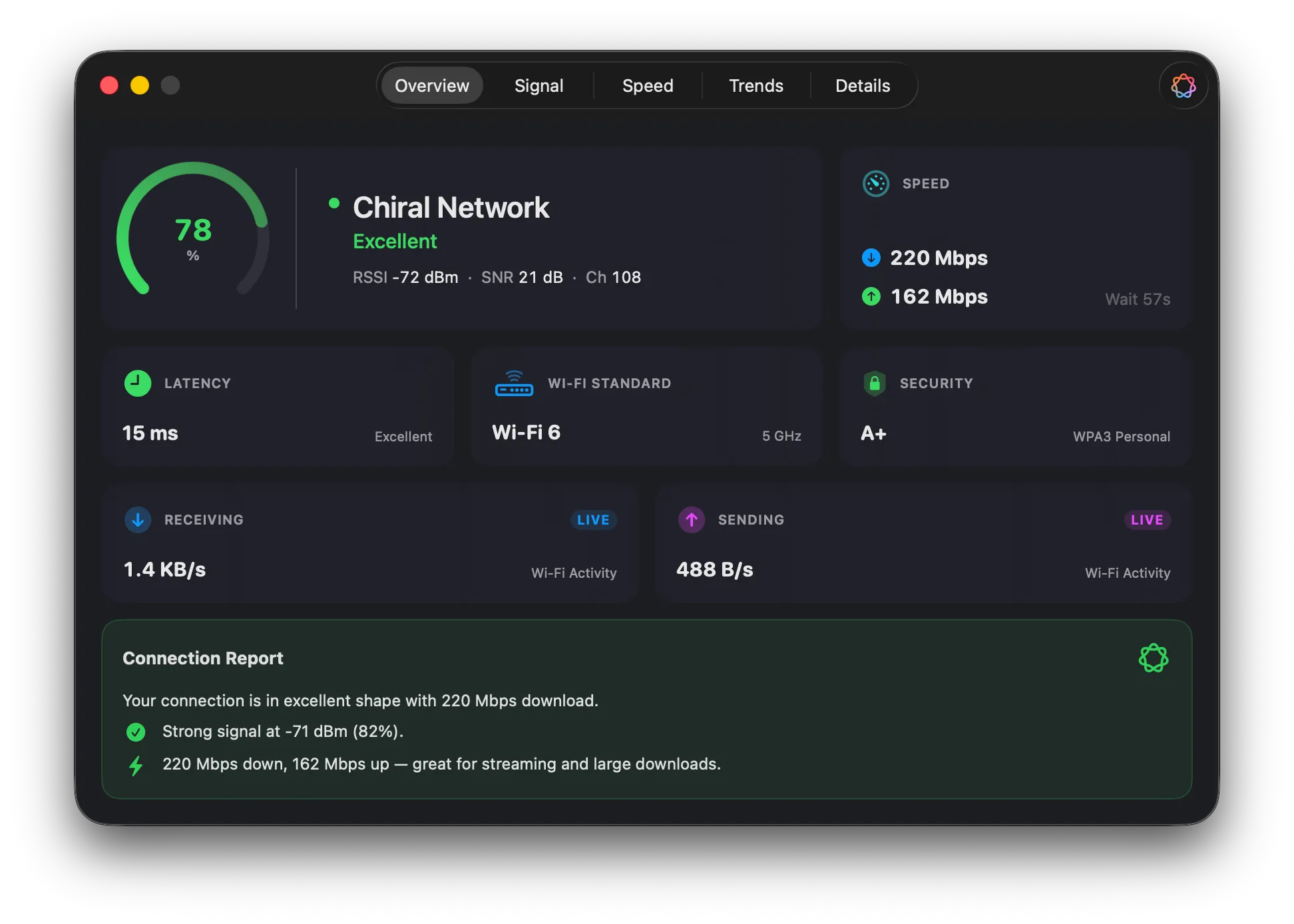
Overview
Signal, standard, security, live throughput — all on screen at once, updated as the connection changes. The readings your Mac has been keeping to itself.
Now in 14 languages
14 languages, each one translated by a human — not a machine. Everything speaks: the signal explanations, the AI answers, even the little alerts from macOS.
Powered by Apple Intelligence
Apple Intelligence reads your live connection data and answers in the kind of sentence a friend who knows networking would give you. On‑device, in your language, never uploaded.
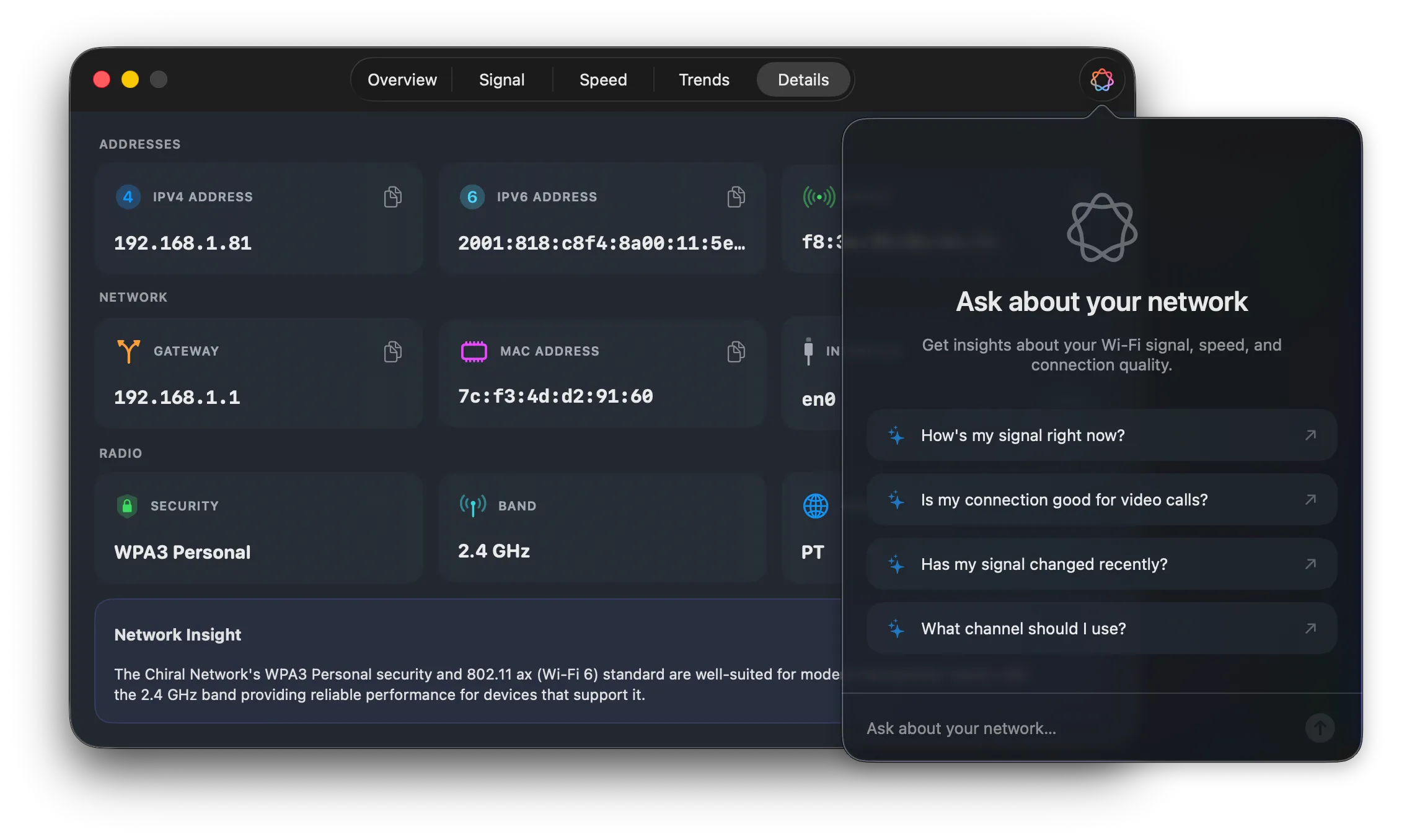
The model sees what your connection is doing right now — RSSI, band, congestion — and answers against that. Generic Wi‑Fi advice need not apply.
Each tab ends with a short paragraph of prose — the interesting bit from what's on screen, pulled out for you.
The conversation stays on the machine it started on. No account, no round‑trip to a server, no training set it feeds into.
macOS 26 with Apple Intelligence for Ask and Insights.
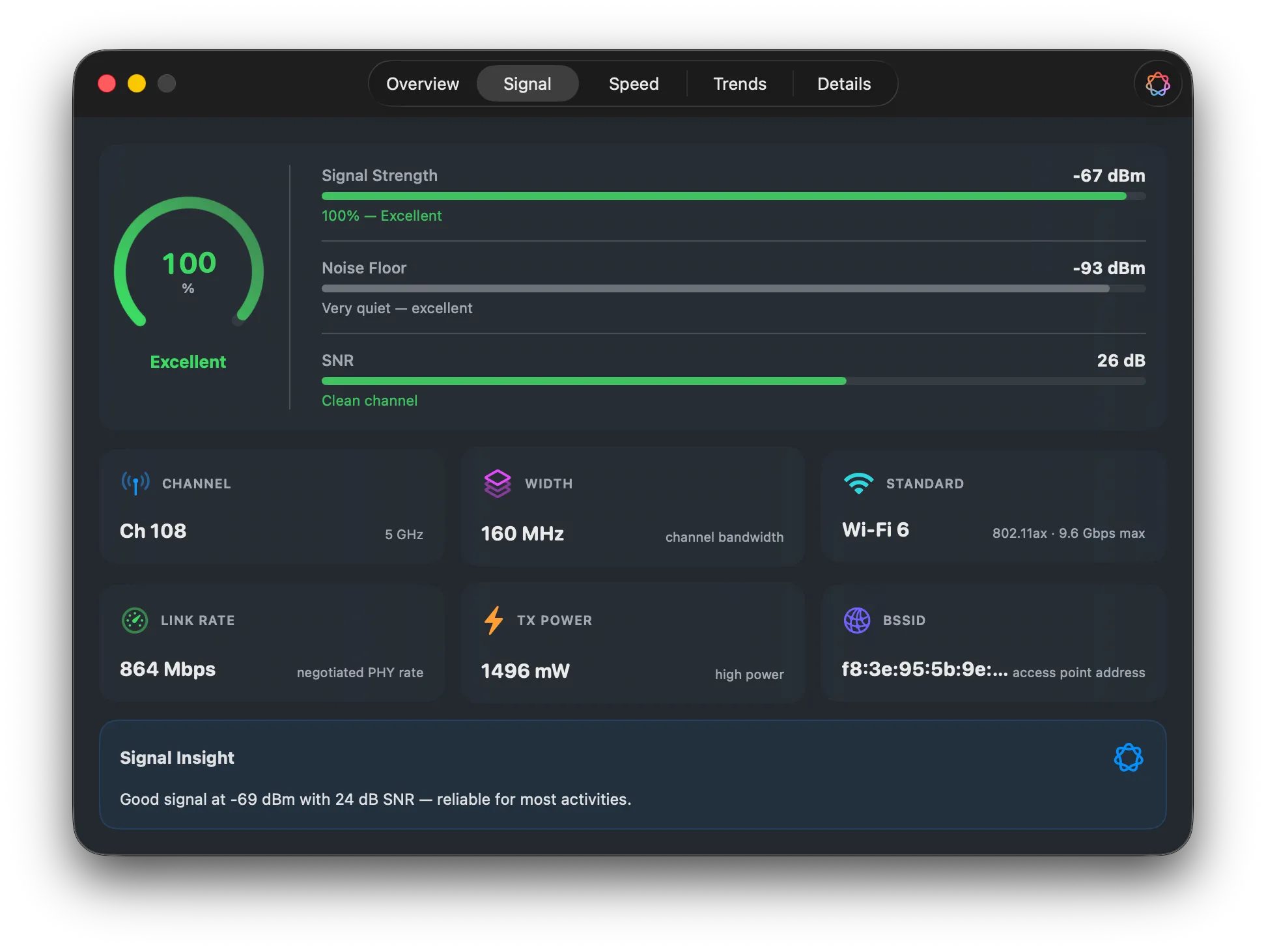
Signal
Green checkmarks are fine until something breaks. When it does, you want the raw numbers — and a definition close enough at hand that you don't have to Google it.
Speed
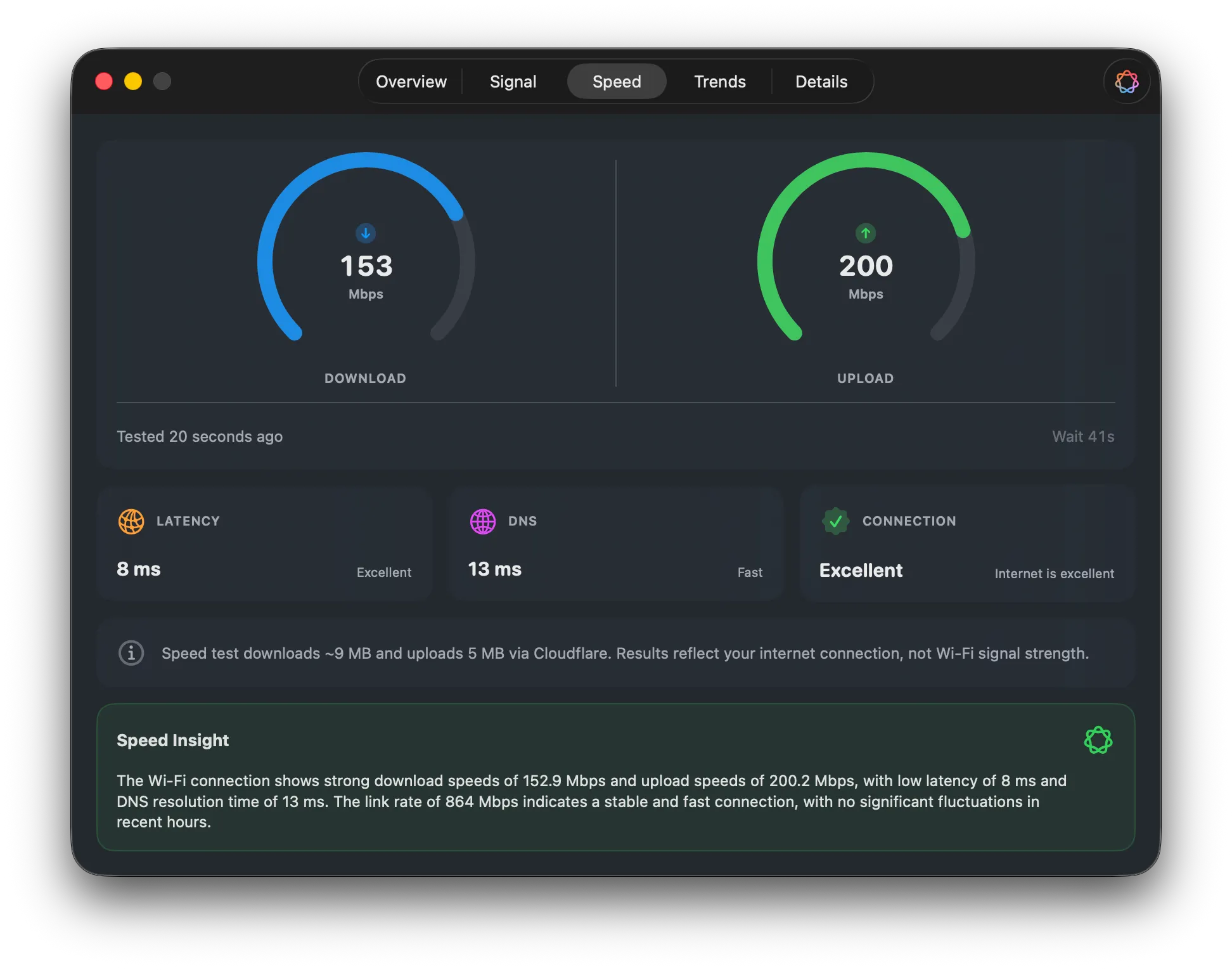
Most speed tests measure the pipe — ISP to server, Ethernet or whatever. This one runs over the Wi‑Fi hop you're actually sitting on, with download, upload, latency, and DNS, so you can tell the router apart from the carrier. Powered by Cloudflare.
Trends
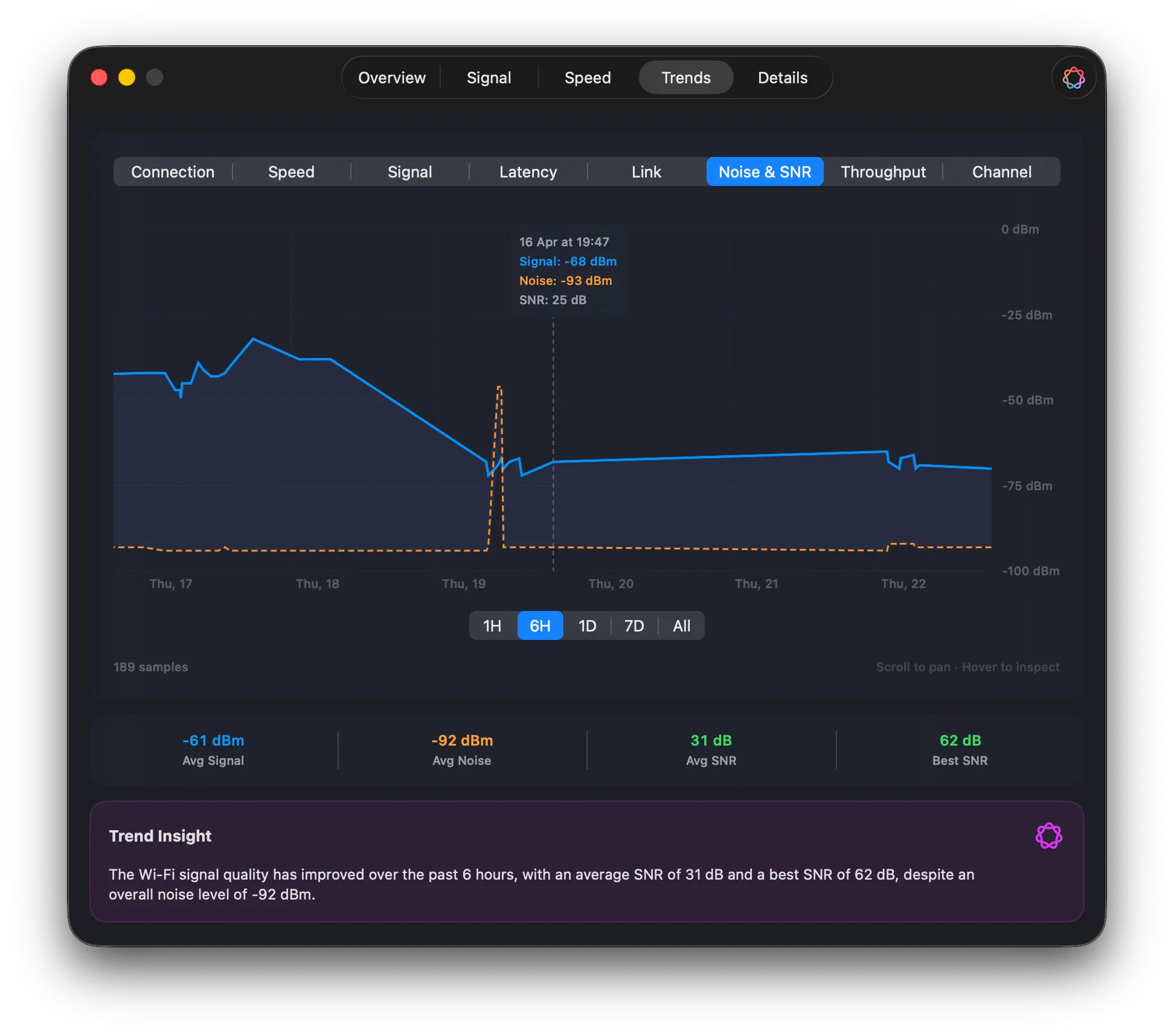
Seven metrics — signal, link speed, noise, SNR, latency, throughput, channel — sampled continuously and kept locally. Scrub back an hour, a day, or the whole month.
Menu bar
A quick read‑out in the menu bar for the "is it fine right now?" question. The full window for every other question. You decide what shows up where.
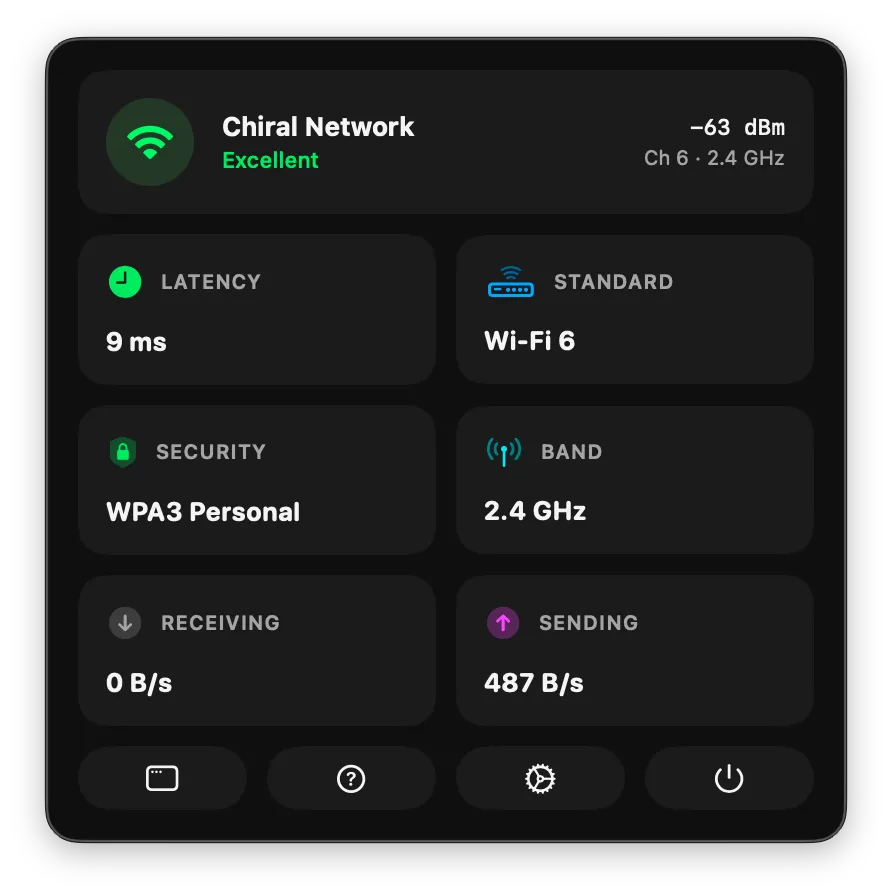
Signal quality, link rate, latency — pick from a dozen metrics for the menu bar; the rest live in a popover a click away.
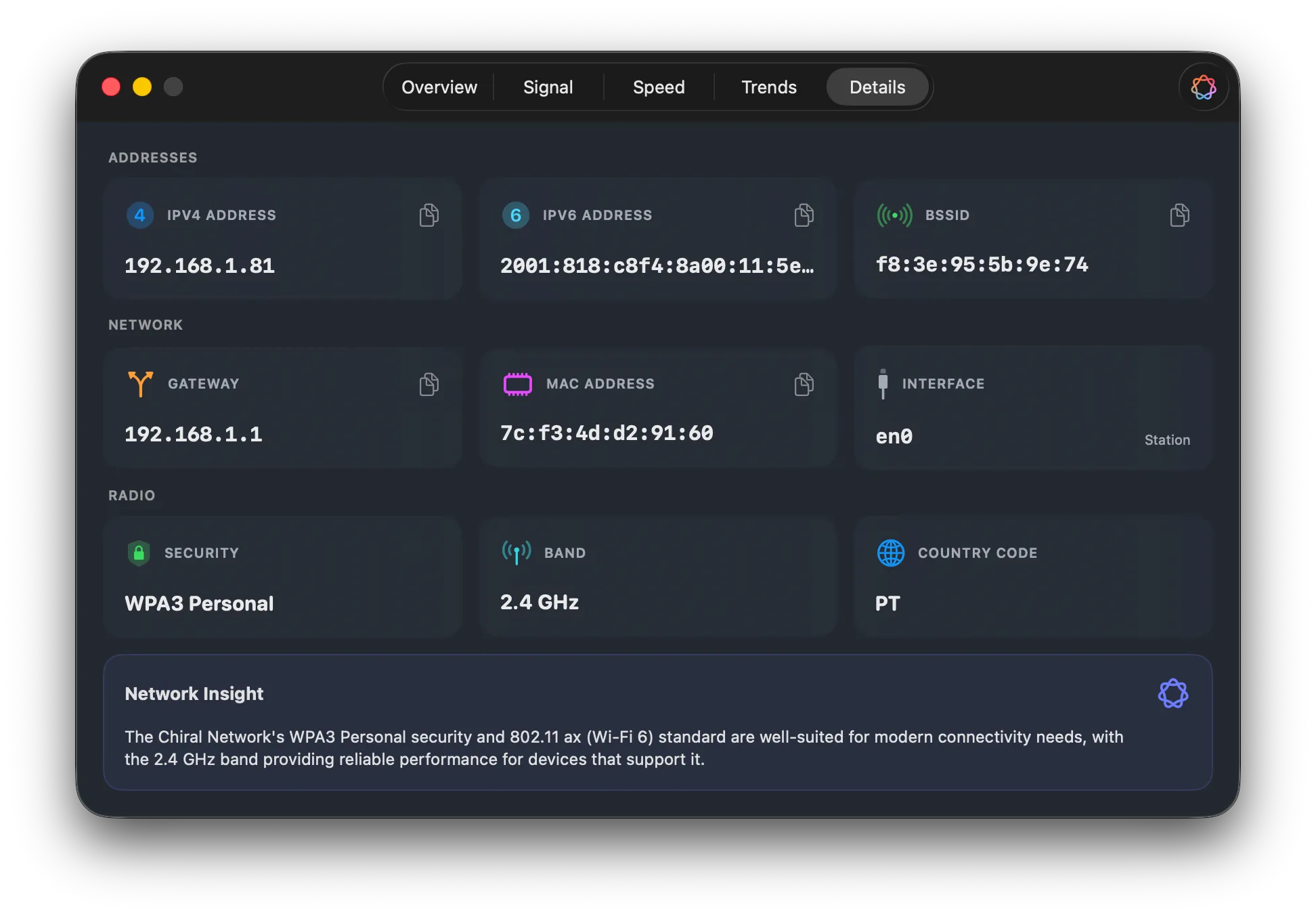
IPv4, IPv6, BSSID, gateway, MAC, band, country code — every field copy‑pasteable, for the rare moment someone actually asks for a BSSID.
Privacy
Signal readings, speed tests, AI conversations — all of it computed on your Mac. There's nowhere else for it to go, because there's no server.
No sign‑up page, no email to verify, no lingering identity. You open the app and it works.
No analytics, no telemetry, no third‑party SDKs. Crash reports only if you opt in.
macOS gates Wi‑Fi identifiers behind Location permission; Wifilicious asks for exactly that reason. Your location itself is never read or stored.
Wifilicious is on the Mac App Store. No subscription, no upgrade fees.
macOS 15 Sequoia or later. macOS 26 with Apple Intelligence for Ask and Insights.
FAQ
No. The core app — Signal, Speed, Trends, Details, menu bar — runs on macos 15 sequoia or later. The Ask and Insights tabs are the exception; those need macOS 26 on an Apple-Intelligence-capable Mac.
macOS puts Wi-Fi identifiers — SSID, BSSID, signal strength — behind Location permission, and every third-party Wi-Fi app has to ask for it. Wifilicious asks for exactly that reason, and never reads or records your location itself.
No. Signal readings, speed tests, and the AI conversations all happen on the Mac. The only outbound traffic the app originates is the speed test itself — roughly 9 MB down and 5 MB up per run, to Cloudflare.
Yes. Apple's Mac App Store license covers every Mac signed into your Apple ID, so one purchase covers the lot.
Option-clicking the Wi-Fi menu gives you six or seven readings, frozen in time. Wifilicious keeps dozens — link rate, SNR, noise floor, BSSID, channel width — logs them continuously, runs proper speed tests, and hands the whole lot to Apple Intelligence when you want a second opinion.
Yes. The Settings tab lists around a dozen metrics — signal quality, latency, link rate, throughput, BSSID, DNS, and so on — each with a toggle. Show one, show five, show none; it's your menu bar.